Shopify to WooCommerce Migration: How to Keep Your SEO Rankings and Traffic Intact
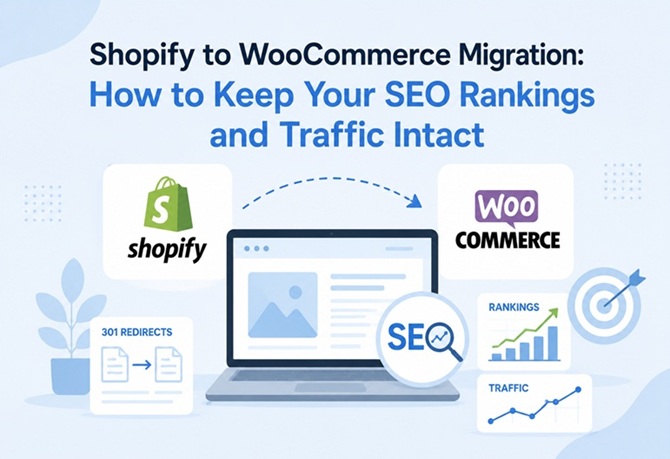
Migration from one platform to another is pretty common these days, and many store owners have a good reason to do so as well. Sometimes they realize that, rather than choosing Shopify, maybe they should have gone for WooCommerce, as it suits their store best.
And for some, this migration journey goes right, and they don’t lose anything, but for others, the same can’t be said. Without knowing the proper migration process, they may lose years’ worth of rankings and even store traffic. Even though it is very preventable, it is painful to see how many still make the same mistakes and lose years of progress.
Helping store owners with migration and doing some of my own experimenting, I have a lot to learn. The platform change itself is not usually the biggest SEO risk. What most people don’t realize is how Google views the URL change and what effect it has. When you migrate from Shopify to WooCommerce, you are telling Google to just forget about all those URL’s and their valuable ranking.
However, if you make sure to tell Google exactly where those pages went, you won’t lose your ranking power or your traffic. This guide walks through what I’ve found actually works for keeping SEO intact during migration.
Why Migration Hits Your SEO
Google has indexed your Shopify store, and each of your URLs has its own rankings. You have organic traffic flowing through your site as well. But once you decide to and implement on moving from Shopify to WooCommerce, everything will look new to Google.
The problem is that yourstore.shopify.com/products/blue-widget is completely different from yourstore.com/shop/blue-widget. Google doesn’t automatically know they’re the same thing. Without help from you (through 301 redirects), Google treats the old URL as dead and the new URL as brand new content with zero history.
All those rankings that you carefully built up along with years of your other SEO work disappears along with the old URLs and your traffic drops to zero. Now, this is fixable but you must know that it takes some work.
Strategy 1: Keep URLs the Same (Simple but Powerful)
The easiest way to protect SEO is honestly the simplest: don’t change your URLs at all.
When you set up your WooCommerce products, configure your slugs to match what they were on Shopify. Your product at yourstore.shopify.com/products/blue-widget should be at yourstore.com/products/blue-widget, not /shop/blue-widget or /items/blue-widget.
Same goes for collections (map them to categories with identical names) and blog posts (keep them at the same URLs).
I know that mapping out hundreds or even thousands of URLs is tedious and time-consuming, however, it is worth every minute if you wanna save your built up authority. You won’t need any redirects and there won’t be any fluctuations within your rankings because Google won’t even know you moved in the first place.
If you must change URL structure, the redirects I’ll talk about below become absolutely critical.
Strategy 2: Set Up 301 Redirects Properly
It is not always that you can keep all your URLs identical and sometimes collections might not map perfectly to your categories. Sure, your new structure might be a bit better, but it will always be different. This is where 301 redirects are exactly what you need.
A 301 redirect tells Google, “This old page permanently moved here.” and Google transfers all the ranking authority from the old URL to the new one. It’s how you keep SEO alive during URL changes.
Here’s what needs to happen:
Map Every URL
Create a spreadsheet of every old Shopify URL and its corresponding new WooCommerce URL. For a 1,000-product store, that’s a lot of URLs. Tools like Screaming Frog can help export all your old URLs automatically, which beats doing it manually.
Implement the Redirects
In your hosting control panel, you can add 301 redirects. This is usually done in your .htaccess file for Apache servers or through your host’s control panel. It looks something like:
Redirect 301 /products/old-product-name https://yourstore.com/products/new-product-name
You’ll have dozens or hundreds of these lines.
WordPress plugins like Redirection can also manage redirects, though server-level redirects are faster.
Test Them
After you set redirects up, actually test them. Click old URLs and verify they go to the right new pages. Check a sample across different product categories, pages, and posts.
Avoid Redirect Chains
A redirect chain happens when URL A redirects to URL B, which then redirects to URL C. Google doesn’t like this. Your redirects should go directly from old to final new URLs, no middle steps.
Strategy 3: Don’t Lose Your Metadata
I’ve seen this happen too many times: someone exports all their products to WooCommerce, and during the process, all their carefully written meta titles and descriptions get replaced with auto-generated garbage.
You probably spent weeks optimizing your meta titles and descriptions on Shopify. They drive your click-through rates from search results. Losing them is a real SEO hit.
Before you migrate anything, export your meta titles and meta descriptions from Shopify. Recreate them exactly in WooCommerce. Same goes for any keywords you’ve optimized for.
When you’re moving blog posts or articles, keep the same heading structure. Don’t rewrite things “better” during migration. You’re introducing unnecessary changes, and SEO often gets worse when you change things that weren’t broken.
Strategy 4: Handle Internal Links Properly
Your products probably link to other products. Categories link to related items. When you move to WooCommerce, these links still point to old Shopify URLs. The 301 redirects technically work, but direct links are better.
WordPress has bulk find-and-replace plugins that let you update a bunch of links at once. It’s worth spending an hour doing this rather than leaving hundreds of links redirecting through 301s.
Same idea with any external articles or resources you’ve linked to internally. Update them to point to your new WooCommerce URLs.
Strategy 5: Technical SEO Things You Can’t Skip
Beyond URLs and metadata, there are technical pieces that matter a lot.
Get Your New Sitemap Ready
Generate a fresh XML sitemap from WooCommerce and submit it to Google Search Console. Your old Shopify sitemap has URLs that no longer exist.
Check Your Robots.txt
Update your robots.txt file to match your new WooCommerce structure. Make sure nothing important is being blocked from indexing.
Verify Your Schema Markup
If you had product schema markup on Shopify, recreate it on WooCommerce. This helps Google understand your products better and can help with rich snippets in search results.
Mobile Performance Matters
Your new WooCommerce site needs to be mobile-friendly and load fast. Google prioritizes mobile. If your new site is slow or doesn’t work well on phones, that’s an additional SEO problem on top of the migration.
Strategy 6: Don’t Migrate Everything at Once
I always recommend a phased approach. Migrate 5-10% of your products first, then wait two to four weeks. Watch what happens to their traffic and rankings. Fix any problems before moving forward.
Then do another batch. Then the rest.
This approach catches problems early. If something goes wrong with all your products at once, that’s a disaster. If something goes wrong with 10% of them, that’s manageable, and you can fix it before it affects everything.
Strategy 7: Monitor Everything After Migration
After migration is done, your work isn’t finished. Google takes weeks to fully recrawl and reindex your site. During that time, you need to watch for problems.
Go into Google Search Console and check your top keywords. Are they still ranking? Some ranking fluctuation is normal in the first few weeks, but if your top keywords drop dramatically, something’s wrong.
Check your organic traffic. Compare it to the 30 days before migration. Some decrease is normal as Google recrawls, but if traffic drops more than 20%, investigate.
Look at your indexation status in Search Console. How many pages did Google find and index? If it’s way less than your Shopify inventory, you have a problem. Check which pages aren’t being indexed and why.
The Plugin Advantage
Doing all this migration stuff manually is error-prone. You’re managing hundreds of redirects, hundreds of URL mappings, metadata transfers, and image imports. Each mistake costs you.
The Import Shopify to WooCommerce by FmeAddons handles a lot of these tasks automatically. Once it connects to your Shopify store, it goes over all of your data, transfers it to WooCommerce in a systematic order, and since it is automated, it is done with consistency. This helps you to avoid missing out any products, metadata or even any of your images.
The real value of a migrate shopify to WooCommerce plugin is that it handles the mechanical work where most mistakes happen. You still need to handle redirects and SEO strategy yourself, but at least the data transfer is reliable.
Common Mistakes People Make
Let me share some things I’ve seen go wrong:
Not Setting Up Redirects
This is the big one. Some people remove their Shopify store without any redirects. All the old URLs become dead links. All the rankings disappear. Permanently. You lose years of SEO work in one day.
Changing URLs Randomly
Moving from /products/my-item to /shop/products/my-item to /store/items/my-item confuses Google and requires a ton of redirects. Keep some consistency in your structure.
Losing Metadata
Auto-generating meta titles and descriptions during migration loses all your SEO optimization. Your click-through rates from search results take a hit.
Not Testing Redirects
Setting up redirects and not testing them is like sending your store live without checking if it works. Half your redirects might not even work, and you won’t know.
Forgetting to Monitor
Some people migrate and then never look at their SEO stats. Problems pile up before they notice. Catch issues while they’re small.
How to Know Migration Went Well
Track these after migration:
Your Top Keywords
Are they still ranking? Track your top 50 keywords before and after. They should hold steady or improve.
Organic Traffic
Compare traffic the 30 days before migration to the 30 days after. It should be similar or better.
Pages Google Indexed
Google should index at least 95% of your important pages. Check this in Search Console.
Your Backlinks
Third-party sites link to your products. Those links should still work (through redirects). Your backlink profile shouldn’t disappear.
Final Thoughts
Migration from Shopify to WooCommerce doesn’t have to destroy your SEO. I’ve seen plenty of people do it successfully. The difference between success and disaster comes down to a few things: planning, attention to redirects, preserving metadata, and monitoring the results.
Take the time to map out your URLs. Set up your redirects. Recreate your metadata. Then monitor what happens after. Your organic traffic is too valuable to gamble with.
Do migration right, and you keep every bit of the SEO work you’ve built. Do it wrong, and you’re starting over from zero.